8. Recurring service plans
Owners, managers and admins.
A recurring service plan records the regular clean you have agreed with a customer: which home, which service, how often and at what price. Plans are how most of your Calendar is filled.
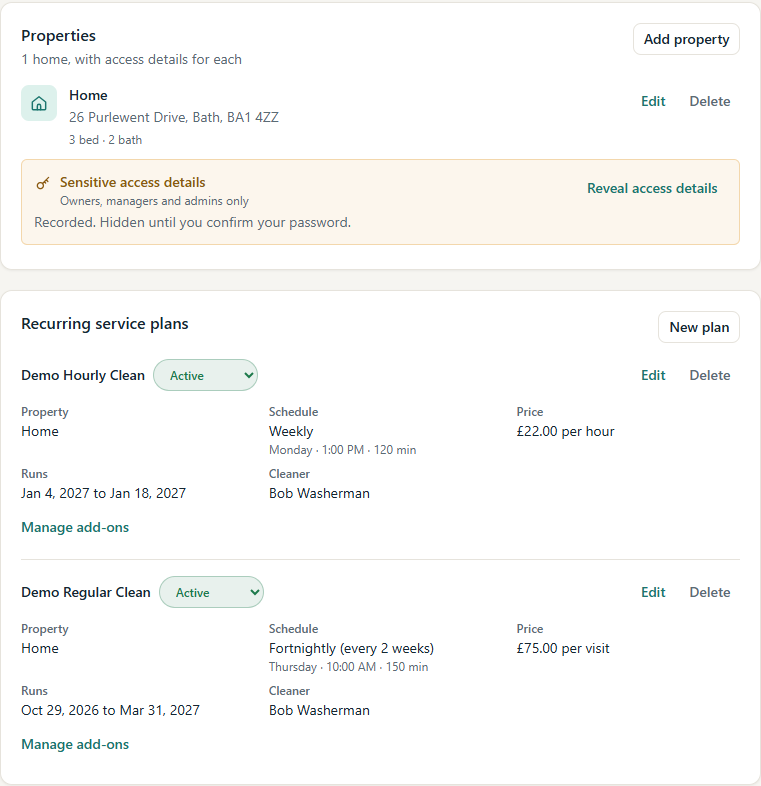
Creating a plan
- On the customer's page, under Recurring service plans, select New plan.
- Choose the Property and the Service.
- Choose the Recurrence type: Weekly, Fortnightly (every 2 weeks), Every N Weeks (then enter the Interval (weeks)) or Monthly (same calendar day). A monthly plan on the 31st falls on the last day of shorter months.
- Set the Start date and, if the plan has one, the End date (leave it blank for an ongoing plan).
- Set the Preferred day, Preferred start time and Default duration (min).
- Choose the Cleaner, or leave it Unassigned. The plan's cleaner is given to the cleans generated from then on (see Who cleans the generated cleans).
- Choose the Pricing method and enter the Hourly rate or Fixed price.
- Select Save plan. The plan appears with its property, schedule, price and cleaner.
MooTidy checks the form before saving (for example, an end date before the start date is refused) and keeps what you typed if anything needs fixing.
Plan add-ons and status
- Add extras to a plan with + Add add-on: choose the Add-on, its Agreed price, Additional duration (min) and Quantity.
- Change the plan's status with the Plan status control: Draft, Active, Paused or Ended.
From plan to cleans
A plan does not put cleans in the Calendar by itself. When you want cleans created:
- Open Calendar and select Generate jobs.
- Choose the Recurring plan. Each active plan is named by customer, service, property and recurrence, for example "Sarah · Demo Regular Clean · Home, 26 Purlewent Drive · Fortnightly from Oct 29, 2026". Below it, MooTidy says how far the plan already runs, for example "Generated through Jan 18, 2027." For a plan with an end date that already has every clean, it adds "This plan is fully generated through its end date of ...".
- Choose the Generate through date. MooTidy creates a clean for every plan date up to and including this date. Dates that already have a clean are skipped.
- Select Generate. MooTidy says how many new cleans it created, or No new cleans needed when every date already has a clean. Select Done to see them in the Calendar.
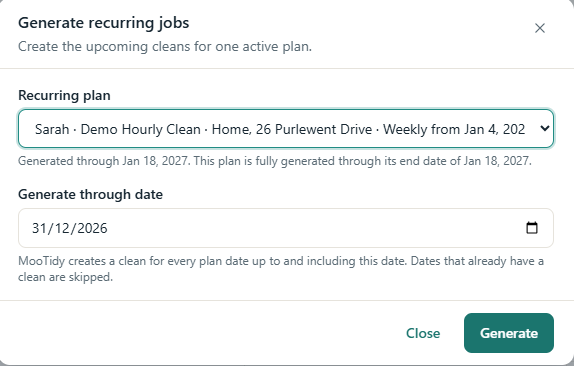
Generating again never duplicates cleans that already exist, so you can safely extend a plan further ahead later. A plan with an end date never gets cleans after its end date.
Who cleans the generated cleans
- Each clean gets the plan's cleaner (if one is set) at the moment it is generated.
- If you later change the plan's cleaner, cleans already in the Calendar keep the cleaner they have. Change those one at a time on each clean (Assign cleaner, and Remove for the old cleaner). Cleans generated after the change get the new cleaner.
- When Generate creates cleans assigned to a cleaner, MooTidy sends that cleaner one summary email (Regular work assigned), for example "New regular work: 4 cleans from Thursday, 7 January 2027 at 9:00 AM", rather than one email per clean.