14. Invoices
Owners, managers and admins.
Creating an invoice
Invoices are created from completed cleans:
- In the Calendar, open a completed clean.
- Under Billing, select Create invoice.
MooTidy creates a Draft invoice with a line for the clean (and any add-ons), and says what to do next: review it and issue it from Invoices. A charge decision (see Calendar and scheduling) can also create an invoice.
How a clean is priced on the invoice
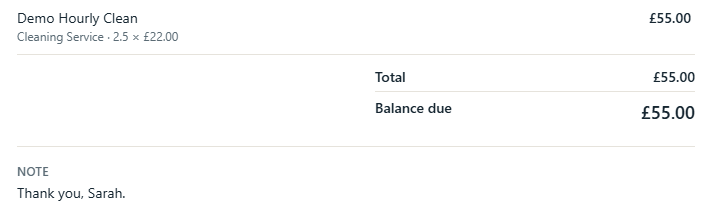
- Hourly cleans are invoiced for the clean's booked length times its hourly rate, for example "2.5 × £22.00" for a 2 h 30 min clean.
- The cleaner's actual time (from arriving to completing) is kept for your own records. It does not change what the customer is invoiced.
- If a clean really should be billed for a different length, change the clean's times or duration with Edit before you create the invoice.
- Fixed-price cleans are invoiced at their fixed price, whatever the length.
- Once the invoice is created, later changes to the clean do not change it. To correct a draft, edit its lines; see also Voiding.
Invoice numbers
The invoice number is given when the draft is created, using your prefix and the next number in sequence (for example INV-0001 or MC-1135). The number stays with that invoice for good: it does not change when you edit or issue the invoice, and a number is never reused, even if the invoice is voided. Set the prefix and the next number in Business Settings (owner only).
Checking and editing a draft
Open an invoice from Invoices to see it as the customer will: your business, Bill to, Invoice date, Due date, Line items and totals.
While it is a draft you can:
- Edit or Remove a line, or Add line (for example an Adjustment, Discount, Cancellation Charge or No Access Charge);
- Confirm price on any line marked Price confirmation required (for Quote Required services). An invoice cannot be issued until every price is confirmed. If the invoice has a Quote Required add-on, MooTidy may also ask you to confirm the price of other priced add-ons on it. Their amounts are already right: check them and confirm;
- write a Note to customer (shown on the invoice and in the invoice email; line breaks are kept) and an Internal note (only your team sees it).
The invoice also shows Payment details: your payment instructions and bank details from Business Settings, with the invoice number as the payment reference.
Issuing
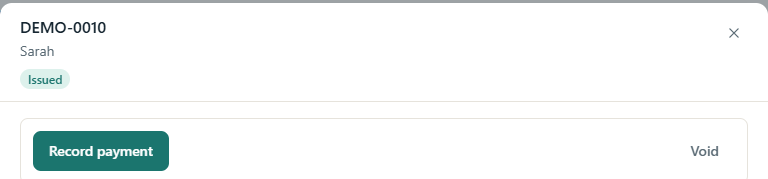
- Select Issue invoice.
- Optionally set a Due date. Leave it blank to use your default payment terms.
- Confirm. The invoice becomes Issued, and the customer is emailed their invoice (when email notifications are on and the customer has an email address).
Once issued, the lines and the note to customer can no longer be changed. The internal note can still be edited.
Statuses
| Status | Meaning |
|---|---|
| Draft | Being prepared. Not owed yet. |
| Issued | Sent to the customer and unpaid. |
| Partially Paid | Some has been paid; a balance remains. |
| Paid | Nothing left to pay. |
| Void | Cancelled. Not owed. |
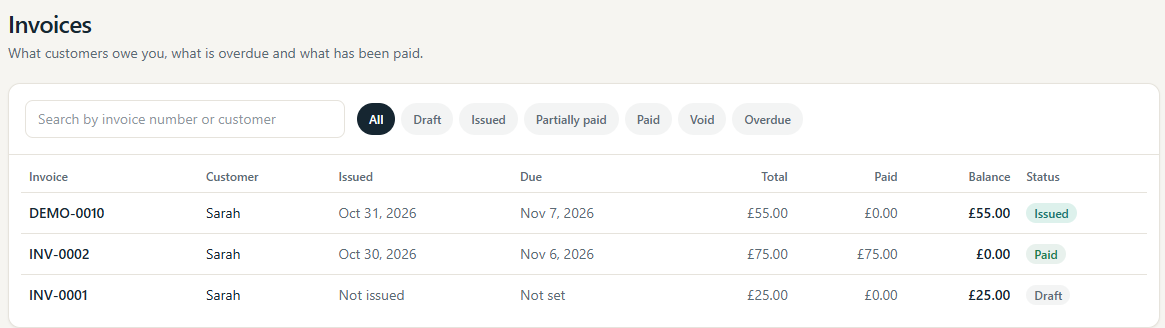
An issued or part-paid invoice past its due date is shown as Overdue. On Invoices, use the filters (All, Draft, Issued, Partially paid, Paid, Void, Overdue) or search by invoice number or customer.
Voiding
To cancel an invoice that has no payments, select Void invoice, optionally give a Reason, and confirm. The clean can then be invoiced again, with a new number. An invoice that has payments cannot be voided.