2. Getting started
Signing in
- Go to MooTidy and enter your Email and Password.
- Select Sign in.
MooTidy may show Loading... for a moment while it finds your business. You then land on the page for your role:
- Owners, managers and admins land on the Dashboard.
- Cleaners (and contractors) who do not manage the business land on My Jobs.
You can still open any page your role allows from the menu.
Creating an account and setting up your business
If you are new to MooTidy:
- Select Sign up and fill in First name, Last name, Email, Password (at least 6 characters) and, optionally, Phone.
- MooTidy says Account created. Open the confirmation email and follow the link.
- Sign in. Because you do not belong to a business yet, MooTidy shows Let's set up your cleaning business.
- Enter your Business name and check the URL identifier MooTidy suggests (lowercase letters, numbers and hyphens).
- Check Country, Time zone and Currency. The time zone matters: it decides what "today" means everywhere in MooTidy (see Time zones).
- Optionally add contact and address details, the Default travel buffer (minutes) and Cancellation notice (hours). You can change all of these later in Business Settings.
- Save. You land on the Dashboard, which shows a short Finish setting up checklist until the essentials are in place.
People who already belong to a business never see this setup page.
Finding your way around
The menu on the left (or behind the menu button on a phone) is grouped:
| Group | Pages |
|---|---|
| (top) | Dashboard |
| CRM | Leads, Customers, Customer Requests |
| Operations | Calendar, My Jobs |
| Finance | Invoices |
| Business | Services, Notifications |
| My work | My Cleaner Profile, My Availability |
| (bottom) | Business Settings |
You only see the pages your role can use. A cleaner sees a short menu focused on their own work. My Jobs appears for anyone who cleans, including an owner who also cleans.
On a phone, tap the menu button at the top to open the menu. Choosing a page closes it again.
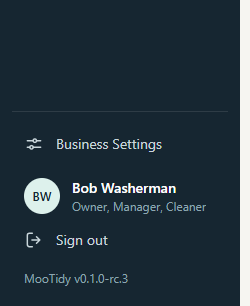
Version. The menu shows the MooTidy version you are using (for example "MooTidy v0.1.0-rc.3"). Owners, managers and admins can also see the version and build under Business Settings, About MooTidy. Quote these if you ever report a problem.
Time zones
MooTidy works in your business's time zone (set in Business Settings). "Today", the days in the Calendar, the times on jobs, the default date for a payment, revenue periods and overdue invoices all follow your business's local time, including the clocks changing in spring and autumn.
This holds even if your phone or computer is set to another time zone, for example while you are travelling. A clean at 9:00 AM in your business's time zone shows as 9:00 AM for everyone.
Times are shown on the 12-hour clock with AM and PM everywhere in MooTidy, including emails: for example 9:00 AM, 2:05 PM, 12:00 PM (noon) and 12:30 AM (just after midnight).