6. Properties
Owners, managers and admins.
A property is a home you clean for a customer. A customer can have more than one. Add the property before you set up a recurring plan.
Adding or editing a property
- On the customer's page, under Properties, select Add property (or Edit on an existing one).
- Enter a Label (required, for example "Home" or "Holiday flat") and the address: Address line 1, Address line 2, City, State / Region, Postal code and Country.
- Add Bedrooms and Bathrooms, and any notes your cleaners need: Pets notes, Parking notes, Parking cost notes, Surfaces notes, Products to use, Products to avoid and general cleaning notes.
- Select Save property. The property appears under the customer.
Your cleaners see the address and these notes on the jobs they are assigned to. Delete removes a property.
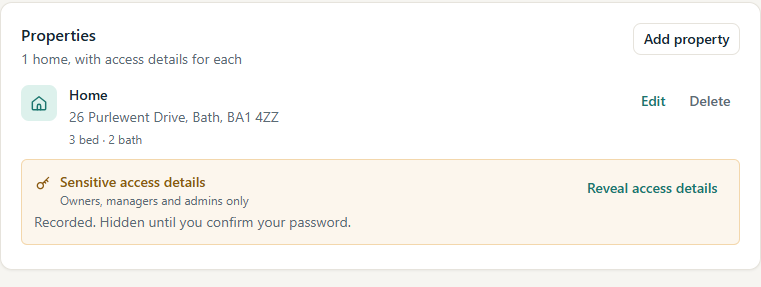
Sensitive access details
Each property card has a separate Sensitive access details area, marked Owners, managers and admins only. It holds how to get in: Access method, Key location, Key safe code, Alarm instructions and Access notes.
Because these details open someone's home, MooTidy keeps them hidden until you confirm it is you:
- Select Reveal access details (or Add access details or Edit access).
- If you have not confirmed recently, MooTidy asks you to Confirm it is you. Enter your MooTidy password and select Confirm.
- The details are shown. Select Save access details after a change. They hide again automatically after 5 minutes, or straight away with Hide access details.
Once you have confirmed, you stay confirmed for 5 minutes, so you can look at several homes without typing your password each time. Having just signed in counts as confirming. If the password is wrong, nothing is shown. If your account uses a second sign-in step, MooTidy may not be able to ask for it on this screen yet; it then shows nothing and tells you so.
MooTidy never loads access details in the background: they are fetched only when you ask and have confirmed. A cleaner sees them only for a clean they are assigned to, after Show access details and the same password check (see My Jobs). They never appear in emails or in the customer portal.