10. My Jobs (for cleaners)
Anyone who cleans: cleaners, contractors, and owners or managers who also clean.
My Jobs is the cleaner's workspace. It shows only your own cleans and the details you need to do them. It is designed for a phone.
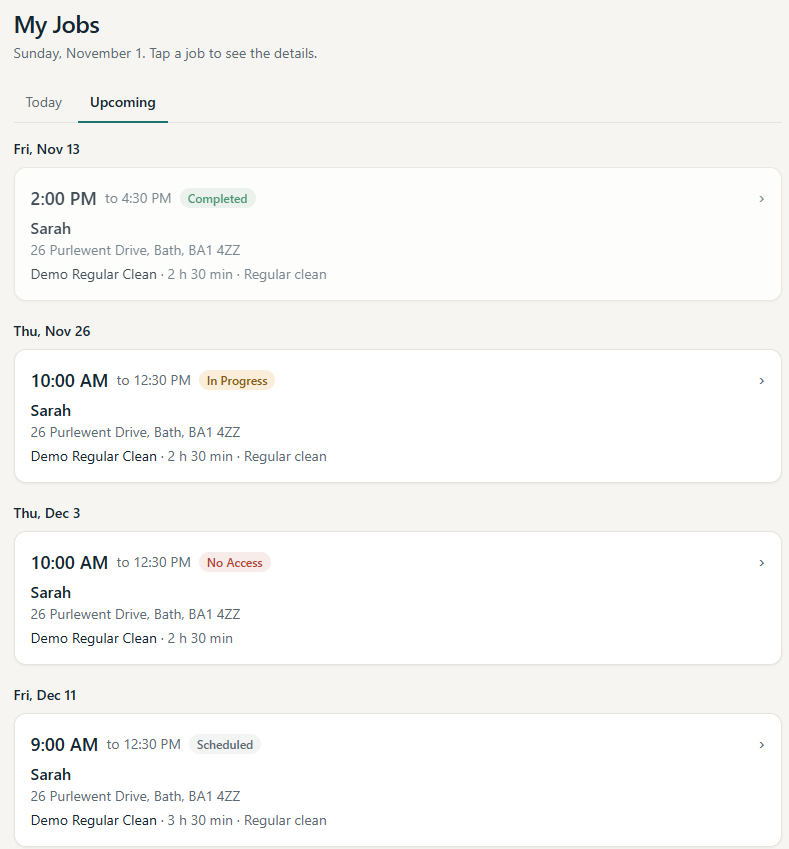
Today and Upcoming
- Today lists your cleans for today, in time order.
- Upcoming lists your cleans for the next 90 days, grouped under Today, Tomorrow and each later date. Cancelled cleans are left out.
Each clean shows the start and end time, its status, the customer, the address and the service with its length. Tap a clean to open it.
Doing a clean
When you open a clean, MooTidy shows one main button for the next step:
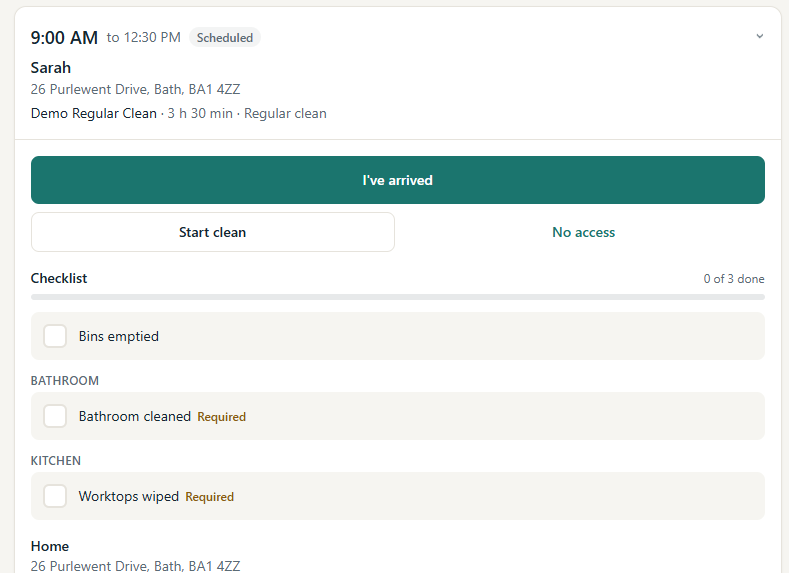
- I've arrived: tap when you get there. (If you prefer, you can go straight to Start clean.)
- Start clean: tap when you begin. MooTidy shows the start time and how long you have been cleaning.
- Checklist: tap each item as you finish it. Items marked Required must be done. The bar shows how many are done.
- Complete job: add any Completion notes (optional), then tap Complete job. MooTidy shows that the clean is completed, with the time.
If required checklist items are not done, MooTidy asks first, for example "2 required checklist items are not done. Complete the job anyway?"
- Tap Complete anyway to complete it. It is recorded as completed with required items incomplete, so your manager can see that.
- Tap Go back to return and finish the items.
Tap Complete job once; MooTidy shows Completing... while it saves. If something goes wrong, it says the job could not be completed and the button stays available. Only treat the clean as completed when MooTidy shows it as completed.
What you can see on a clean
- Today's priorities from your manager, if any.
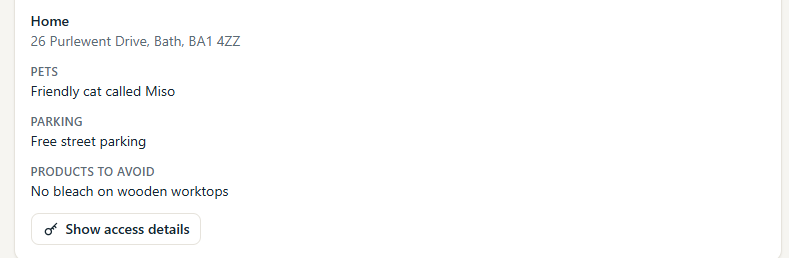
- Job notes, Cleaning notes, Pets, Parking, Products to use, Products to avoid, and any add-ons.
- The property name and address.
- Show access details: tap to see how to get in (for example the key safe code). Unless you confirmed in the last 5 minutes, MooTidy first asks for your MooTidy password. The details hide again automatically after 5 minutes, or tap Hide. They are only available for cleans you are assigned to.
- After the clean: when you arrived, started and completed, and how long it took.
Reporting an issue
If something is wrong (damage, a safety concern, not enough time, and so on):
- Tap Report issue. It appears once you have started the clean.
- Choose the Type (for example Damage Concern or Insufficient Time), describe What happened, and choose How serious (Low, Medium or High).
- Tap Send report. Your manager is alerted, and the issue is listed on the clean.
When you cannot get in
- Tap No access (available before or during the clean).
- Optionally add a Reason, for example "Nobody home and the key safe was empty".
- Tap Confirm no access. The clean is marked No Access and your manager is alerted.
What cleaners do not see
My Jobs never shows prices, invoices, payments, business figures or other cleaners' work. Cleaners see only their own assigned cleans.