13. Customer Requests
Owners, managers and admins. Only relevant if you use the customer portal.
Customers using the portal can ask for changes: Reschedule a clean, Skip a clean, Extra service, Property update, Contact update or General request. Customer Requests collects them. Nothing changes until you decide.
Each request shows who sent it, when, and what it is about:
- A Reschedule a clean request shows the Current clean (with View clean to open it), what the customer Requested instead (a date, and a time if they gave one, for example "Fri 22 Jan 2027, 2:00 PM" or "Fri 8 Jan 2027, any time") and the Customer's message.
- A Skip a clean request shows the clean it is about.
- A Property update request shows which of the customer's properties it is about, for example "Sarah · Home".
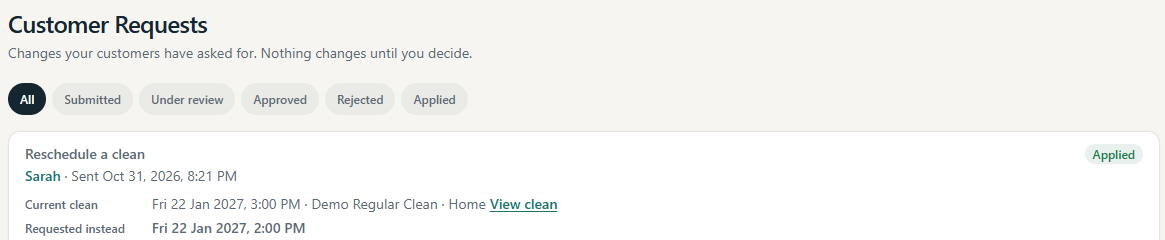
Use the filters at the top (All, Submitted, Under review, Approved, Rejected, Applied) to narrow the list.
For each request you can:
- write a Response to the customer (optional);
- Mark under review while you look into it;
- Approve or Reject it;
- mark it applied once you have made an approved change.
Approving does not change anything by itself. For a reschedule:
- Approve the request.
- Open the clean (View clean) and Reschedule it to the time you agree. That can be the time asked for or another time you agree with the customer.
- Back in Customer Requests, select Mark applied and email customer. MooTidy emails the customer to confirm the booking as it now stands in your Calendar ("Your cleaning booking is confirmed"), with the real date and time.
If the clean is no longer active (for example it was cancelled), the button is Mark applied instead, and MooTidy says no booking confirmation will be sent. For other request types, make the change yourself, then Mark applied.
The customer sees your decision and response in the portal, and is emailed when you approve or decline (if those emails are switched on). A customer can cancel their own request while it is submitted or under review.