18. Customer Portal
Optional, and switched off until you turn it on.
The customer portal lets a customer sign in to see their own cleans and invoices and to ask for changes. You never have to use it: everything a customer can do there, you can do for them.
Turning it on
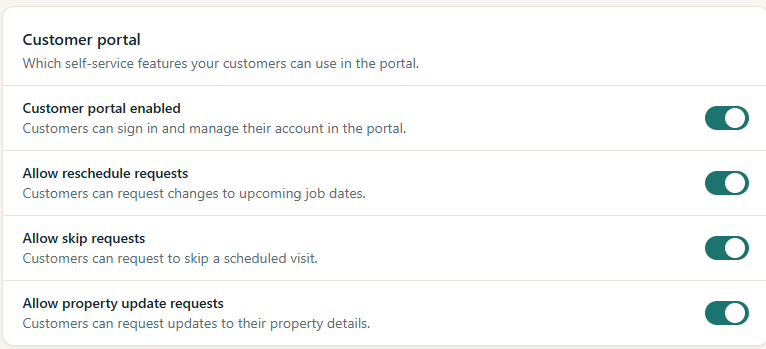
The owner turns the portal on. In Business Settings, under Customer portal, switch on Customer portal enabled, and choose which requests customers may make: Allow reschedule requests, Allow skip requests and Allow property update requests. Only turn the portal on when you are ready to invite customers.
Inviting a customer
- On the customer's page, under Portal access, select Create invitation.
- MooTidy shows an Invitation link. Copy it now: it is shown only once. MooTidy also emails the invitation to the customer; you can send the link yourself by email or text as well.
- The customer opens the link, signs in or creates an account with the same email address that received the invitation, and their portal access becomes active.
An invitation link works once. Under Portal users you can Suspend, Reactivate or Revoke a customer's access.
What customers see
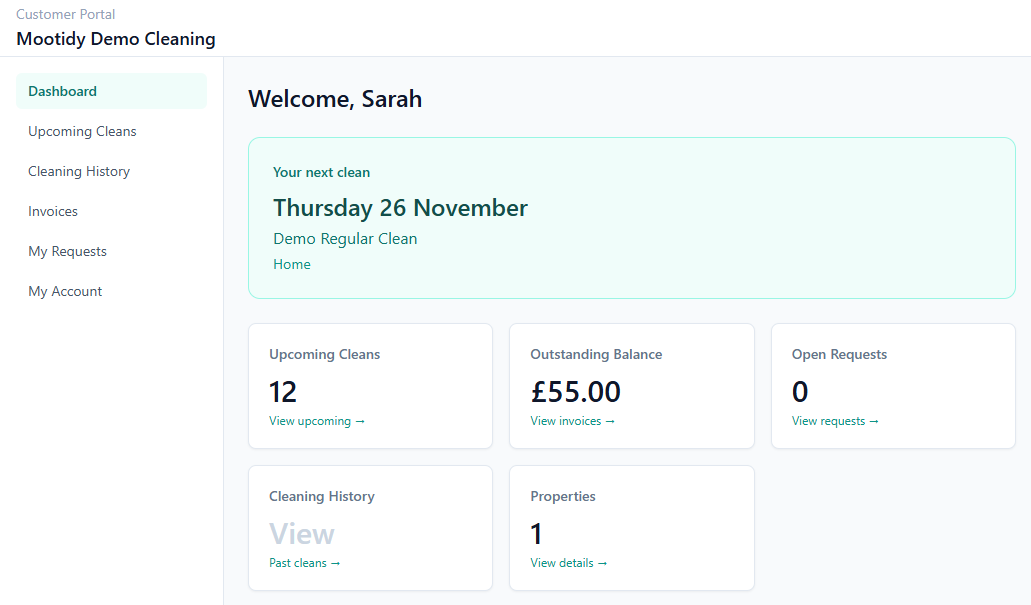
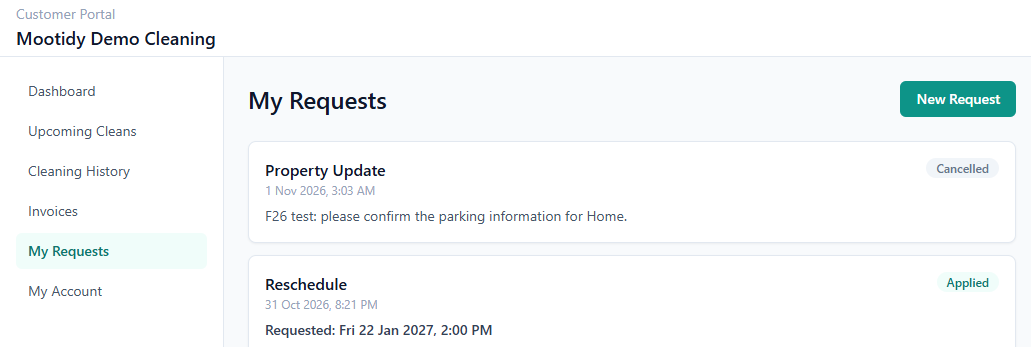
The portal has: Dashboard, Upcoming Cleans, Cleaning History, Invoices (issued invoices and their details), My Requests (with New Request) and My Account. Customers only ever see their own household. They never see your internal notes, the cleaner's actual clock times or property access details. Times are shown on your business's clock.
Upcoming Cleans and Cleaning History
Every clean a customer can see is in exactly one of the two lists:
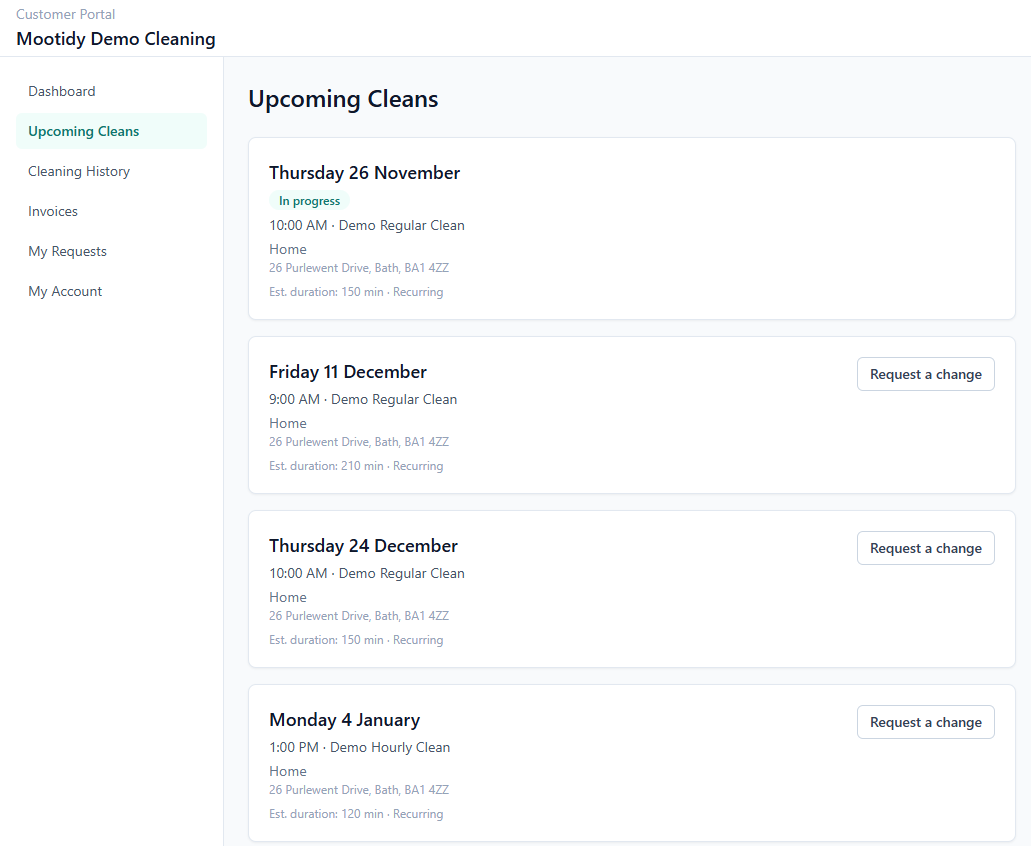
- Upcoming Cleans holds cleans still to happen (scheduled, confirmed or in progress) dated today or later on your business's calendar. A clean the cleaner is doing now is marked In progress. On a clean that has not started, the customer can select Request a change.
- Cleaning History holds every finished clean (completed, skipped, cancelled or no access), whatever its date, as soon as it is finished. It also holds any earlier clean that has not been completed or closed yet, labelled Awaiting update (if it was scheduled or confirmed) or In progress. History shows each clean's booked duration, never the cleaner's actual time, and has no Request a change.
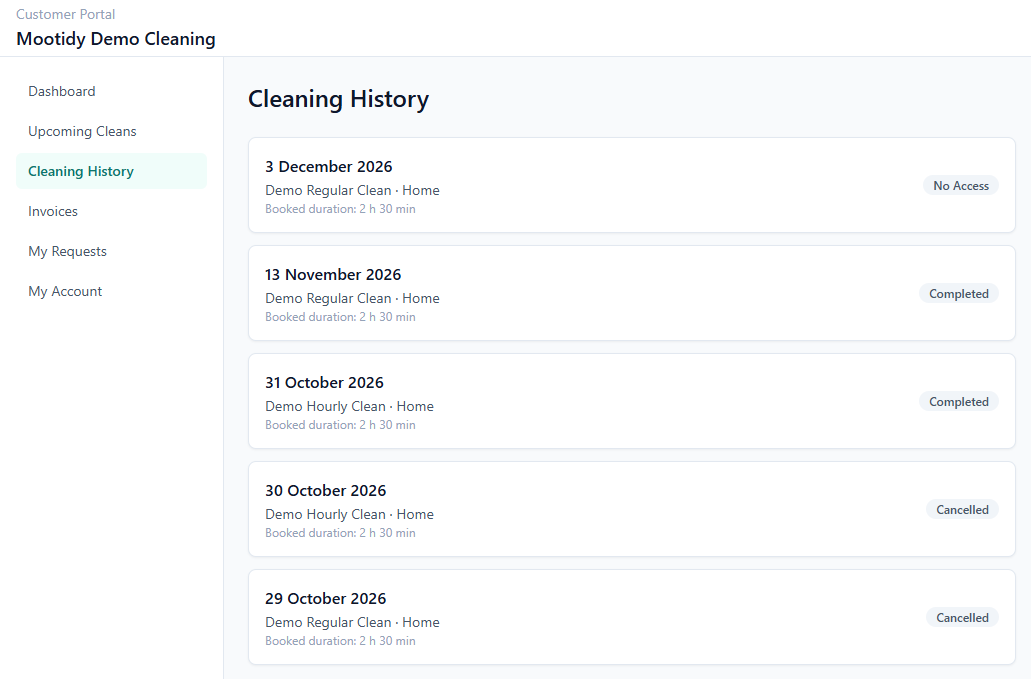
MooTidy never changes a clean's status by itself. If a customer's history shows Awaiting update, that clean still needs closing on your side: complete, skip or cancel it in the Calendar.
Requests from the portal
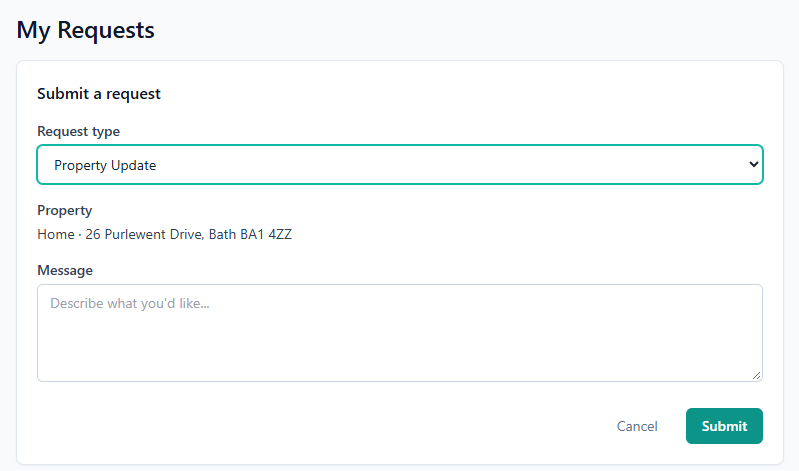
On My Requests, the customer selects New Request and chooses the type: Reschedule, Skip a Clean, Extra Service, Property Update, Contact Update or General Request.
- Reschedule and Skip a Clean: the customer chooses Which clean? from their upcoming cleans. For a reschedule they also say When would you like this clean instead?: a Date (today or later) and, optionally, a Time. Leaving the time blank means any time that day suits them. Nothing changes until you have reviewed the request (see Customer Requests).
- Property Update is always about one of the customer's own properties, and they see which before sending. With one property, it is chosen for them and shown, for example "Home · 1 High Street, Bath". With several, they choose from Which property? and must pick one. With none, MooTidy says "There are no properties available for this request." and the request cannot be sent. Only the property's name and address are shown, never notes or access details.
- The other types need only a message.
After sending, the customer sees Request sent and the request is listed as Submitted, then shows your decision and response.
The New Request list currently shows every request type, including any you have switched off in Business Settings. A customer who chooses a switched-off type cannot send it. If you switch types off, tell your customers which requests you accept.
Staff who also have portal access see Switch to Customer Portal in the menu.