9. Calendar and scheduling
Owners, managers and admins.
The Calendar
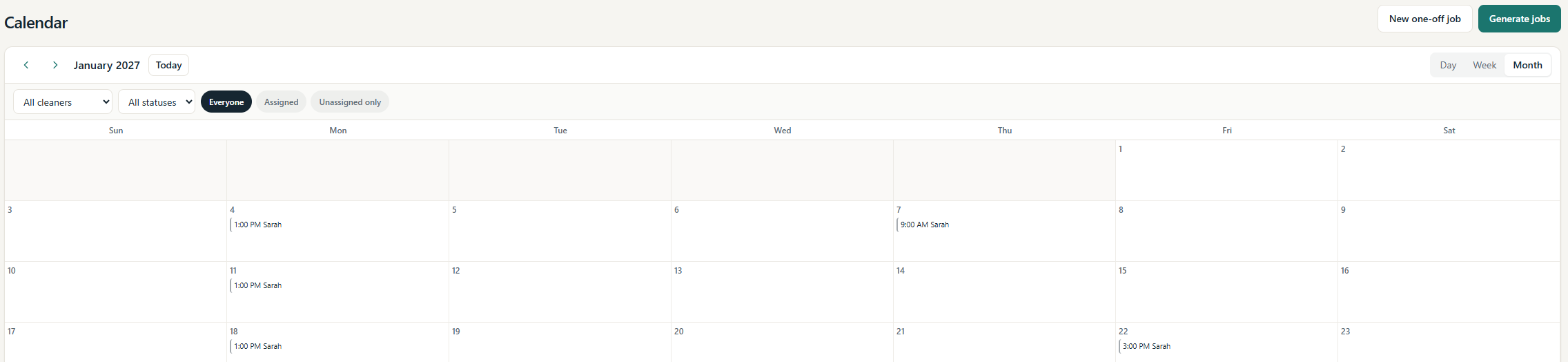
Calendar shows your cleans by day, week or month. Use the previous and next arrows to move, and Today to come back. Narrow the view with:
- Cleaner: one cleaner or All cleaners;
- Status: one status or All statuses;
- Assignment: Everyone, Assigned or Unassigned only.
Cleans with nobody assigned are marked Unassigned. Days and times always follow your business's time zone.
Job statuses are Scheduled, Confirmed, In Progress, Completed, Skipped, Cancelled and No Access.
Booking a one-off clean
- Select New one-off job.
- Choose the Customer, Property and Service, and optionally a Cleaner. Choosing a service fills in its pricing method, price and default duration.
- Set the Date, Start time and Duration (min), and any add-ons and notes. You can change the duration, pricing method or price for this clean; the service itself is not changed. Choosing a different service fills in that service's defaults again.
- Save. If the cleaner already has work at that time (or too close to it for the travel buffer, or outside their availability), MooTidy shows the clash. Choose a different time, or Create anyway.
Working with a clean (Job Detail)
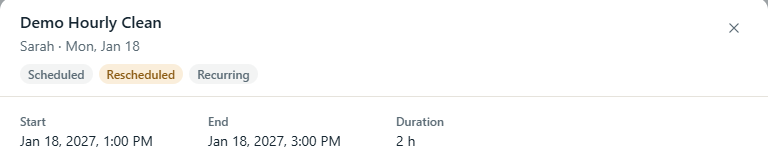
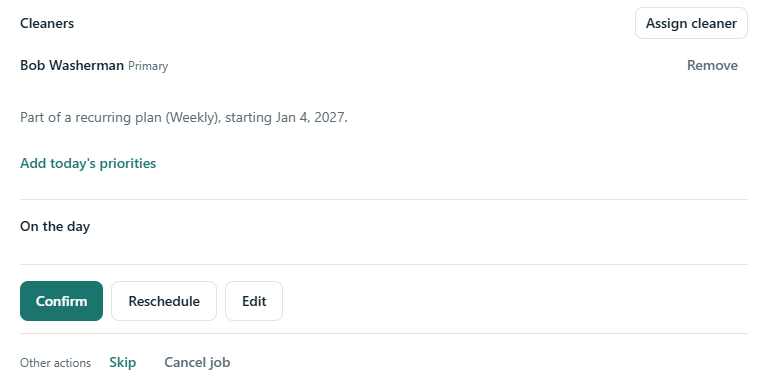
Select a clean in the Calendar to open its details. You can see the times, customer, property, cleaners, notes and, once work has started, what happened On the day (arrived, started, completed, actual duration, outcome, or no access).
| To... | Do this |
|---|---|
| Assign a cleaner | Assign cleaner, choose the Cleaner and Role (Primary or Assistant), then Assign. If there is a clash, MooTidy shows it; select Assign anyway to go ahead. |
| Remove a cleaner | Remove next to their name. |
| Confirm the clean with the customer | Confirm. |
| Give the cleaner priorities for this visit | Add today's priorities. The cleaner sees them on this job only. |
| Move the clean | Reschedule, set the New start. The New end moves with it, so the clean keeps its length; change the end only if the length should change. Add an optional Reason, then Reschedule. |
| Change times or notes | Edit, change the Start, End, Estimated duration (min), Customer notes or Internal notes, then Save. The duration always matches Start and End: changing it moves the end. For an hourly clean it is the time invoiced. |
| Skip one visit of a plan | Under Other actions, Skip. |
| Cancel the clean | Under Other actions, Cancel job, add an optional Reason, and confirm. |
| Deal with a reported issue | Under Reported issues, add optional resolution notes and select Resolve. |
| Invoice a completed clean | Under Billing, select Create invoice (see Invoices). |
| Open the clean's invoice | Under Billing, select the invoice number, for example DEMO-0010. It opens that invoice. |
| Decide on a no-access or late-cancellation charge | Under Billing, use Charge decision: choose the Charge type, then Charge (with an Amount) or Waive, and Submit. Charging creates an invoice; waiving does not. |
After each action MooTidy says what happened, for example Cleaner assigned, Clean rescheduled (with the new day and times), Job cancelled or Invoice created, and what to do next where there is a next step.
Rescheduled, cancelled and newly assigned cleans can email the cleaners involved (see Notifications).